7 Checks Before Escalating a Warehouse Scanner Software Case
Isolate barcode quality, scanner state, capture profile, output contract, WMS field behavior, and version or log evidence before escalating a warehouse scanner case.
The short answer
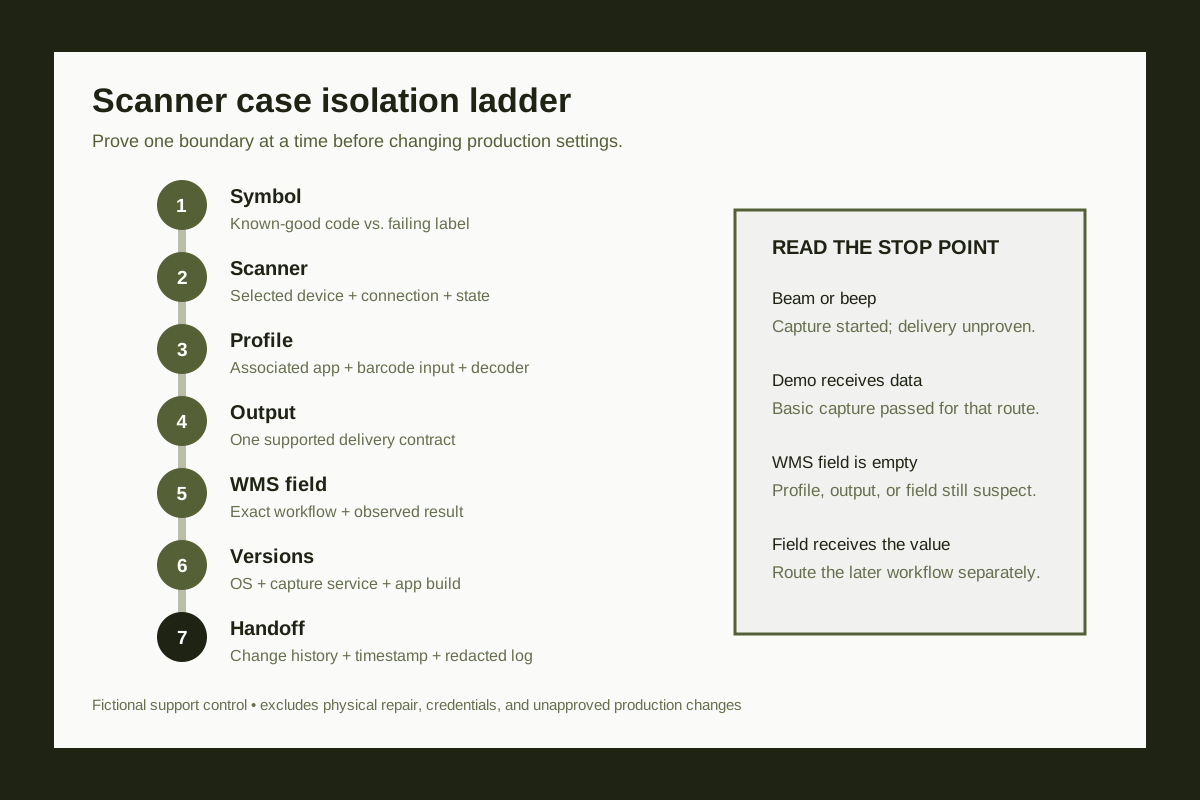
Before escalating a warehouse scanner software case, write the exact failing path, compare the symbol with a permitted known-good code, confirm the selected scanner and its current state, bind the active capture profile to the WMS app, verify one supported output contract, reproduce in the exact WMS field and workflow, and package the versions, change history, timestamps, and redacted logs. A scan beam or good-decode beep proves only part of the path; it does not prove that valid data reached the WMS.
A scan trigger can light the aimer and produce a good-decode beep while the warehouse app receives nothing. The scanner may have decoded the symbol, but the active profile may be bound to another app, the needed decoder may be off, the selected output may not match the WMS input contract, or the value may fail later in the workflow.124
Treat the case as a path with observable boundaries: symbol, scanner, capture service, profile, output, app field, and transaction. Test one boundary at a time and preserve the current production configuration. A successful demo-app scan narrows the failure; it does not prove the WMS field, user permissions, inventory record, or server transaction.145
The seven checks below produce a handoff that engineering or the device vendor can reproduce. They do not authorize a factory reset, scanner re-pair, profile import, firmware change, relabeling, or any other production change.
1. Write the failure as one observable path
Record the device model or managed asset ID, scanner type, WMS app and workflow, exact field, local time and time zone, first occurrence, number of affected devices, and the smallest permitted reproduction. Describe what is seen: no beam, no decode feedback, wrong characters, empty field, rejected value, duplicate input, disconnect, crash, or later transaction error.5
Keep capture and workflow results separate. “The scanner beeps, then the receiving field stays empty” is useful. “Scanning does not work” hides the point at which evidence stops. If the app shows an error, preserve the exact redacted text and timestamp rather than translating it.5
Do not request passwords, tokens, full customer records, unrestricted device exports, or unrelated production logs. Use the organization’s approved identifiers and redaction process.
Name the device, scanner, app, workflow, field, symptom, scope, and time.
- When it helps
- At intake, before “scanner broken” becomes the case description.
- What to watch
- The intake takes a few minutes, but it prevents several different failures from sharing one vague label.
2. Compare the failing symbol with a known-good code
Use one permitted known-good test code of the expected symbology and data shape. Record whether the failing and known-good symbols produce the same beam, feedback, decoded characters, and app result. Keep the test code free of live customer or inventory data.7
The GS1 barcode quality checks identify quiet zones, contrast, color, construction, size and height, packaging obstruction, damage, and positioning as common readability factors. Note visible differences such as smearing, wrinkles, glare, clipping, or missing quiet space without declaring formal conformance.7
If only one symbol fails, keep barcode quality or encoded data in the candidate set. If both fail in the same way, continue through the capture path. Do not relabel stock or change decoder settings from this comparison alone.
Separate symbol readability from scanner and software delivery.
- When it helps
- When some labels scan and others do not, or the failure follows one package, print run, or symbology.
- What to watch
- A comparison does not replace formal verification, but it quickly shows whether the problem follows the symbol.
3. Confirm the selected scanner and current state
Capture whether the app is using the internal imager, camera, or an external scanner. Record the external scanner connection state separately. For the selected Zebra scanner, preserve the status reported by the supported platform, such as IDLE, WAITING, SCANNING, or DISABLED; other vendors can expose different terms.23
The Zebra DataWedge barcode input guide documents scanner selection separately from decoder and reader settings. Available scanners depend on the hardware present or connected, and an external Bluetooth scanner can have different selection and reconnection behavior from the built-in imager.2
A disconnected or disabled state is evidence, not permission to reset or re-pair the device. Follow the customer’s device-management and change process for any action that can alter production service.
Identify the actual capture device and whether it is available to the app.
- When it helps
- For devices with an internal imager, camera, ring scanner, or external Bluetooth or USB scanner.
- What to watch
- Selection and state evidence can look technical, but it prevents software teams from debugging a scanner the app is not using.
4. Bind the active capture profile to the WMS app
Record the active capture profile or configuration identity and confirm it is associated with the intended WMS app or activity. Check that barcode input is enabled, the intended scanner is selected, and the required symbology decoder is enabled. Preserve the current values before any approved change.123
The Zebra DataWedge FAQ explains that DWDemo can scan while another app receives nothing when the correct profile is not associated with that app or its input and output are not configured. A default profile can still show a scan beam even though it does not know how to deliver captured data to the intended app.1
Do not copy a profile from another device, enable every decoder, or import a configuration as an intake step. Those are controlled changes that can introduce formatting, performance, or fleet-consistency problems.
Verify app association, barcode input, selected scanner, and the needed decoder.
- When it helps
- When the scanner works in a vendor demo or another app but not in the warehouse app.
- What to watch
- Profile inspection adds a configuration check, but it distinguishes capture from app delivery without replacing hardware.
5. Verify one output path and its contract
Identify the one supported output mode the integration expects. For intent output, capture the vendor-defined action, delivery type, data key, and formatting. For keystroke output, capture suffix, prefix, focus, and formatting rules. Compare settings with the current device and app documentation.41
The Microsoft advanced scanner configuration guide documents a Warehouse Management mobile app contract that uses broadcast intent, a named action, and a data-string key. It also says intent output often replaces keystroke output and advises disabling keystroke output when verifying the intent setup. Those values are Microsoft-specific examples, not universal scanner settings.4
If competing outputs are enabled or the contract differs, record the mismatch and route it through the approved configuration process. Do not change both ends at once; that removes the evidence needed to tell which boundary failed.
Match intent, keystroke, or another supported output to the WMS input expected by the current app version.
- When it helps
- When capture feedback occurs but the WMS field is empty, altered, duplicated, or receives unexpected characters.
- What to watch
- The output check is vendor-specific, but it locates the handoff where decoded data leaves the scanner service.
6. Test the exact WMS field and workflow
Using an approved test record, scan the same known-good code into the exact WMS field. Record the raw visible result when permitted, whether the field had focus, whether the app accepted or transformed the value, and the next observable response. Stop before creating an unapproved inventory or fulfillment transaction.45
Microsoft’s verification step is deliberately field-specific: scan a known barcode and see whether the expected value appears. If the field is empty or shows unexpected characters, review the device’s output settings. App logs can then distinguish navigation, connection, and application errors around the same timestamp.45
A successful demo scan proves only that the device can capture and deliver through that demo route. It does not prove WMS field focus, app permissions, configuration, inventory data, sync, or the server transaction. Route those downstream states to their own support work.
Observe whether the app receives nothing, receives changed data, rejects it, or fails later.
- When it helps
- After basic capture works in a demo, test field, or another app.
- What to watch
- The exact workflow test may require a safe test tenant or approved transaction, but it prevents a demo result from being treated as end-to-end proof.
7. Package version, change, and log evidence
Attach device or managed asset ID, scanner model and connection type, OS version, capture-service and scanner-framework versions, WMS app version, active profile or configuration identity, exact reproduction time, affected scope, last known change, redacted error text, and the smallest relevant log window.356
The Microsoft mobile app log guide says its local log records sign-in, navigation, connection, network, error, and exception events and can be filtered and exported. The Microsoft app support policy also ties support eligibility to the installed app release. Zebra exposes DataWedge and scanner-framework version information as separate diagnostic facts.563
Check the vendor’s live support policy when the case is opened. Redact credentials, tokens, personal data, complete inventory records, and unrelated log lines. State the failed boundary and the evidence that passed; do not ask the next owner to repeat every test.
Fictional example: two devices show a beam and good-decode beep after an app update. A known-good code appears in the vendor demo but leaves the WMS receiving field empty. The built-in scanner is selected and ready; the active profile is associated with the WMS app; both intent and keystroke outputs are enabled. The case should not claim failed hardware. It should preserve the profile, versions, update time, WMS field result, and redacted app log, then route the output-contract mismatch through the approved change process.145
Give the next owner one reproducible bundle rather than a list of guesses.
- When it helps
- Before escalation to the WMS vendor, device team, capture-service owner, or engineering.
- What to watch
- Collecting exact versions and a narrow log window takes time, but it avoids reopening the same intake questions.
Putting it into practice
A useful scanner escalation says which boundary failed and which boundaries passed. Keep the symbol comparison, selected scanner and state, active profile, output contract, exact WMS field result, versions, change history, and narrow log window together.
Use the isolation ladder before changing production settings. If a test succeeds in a demo but fails in the WMS, preserve that distinction. It can save a hardware replacement, avoid a blind profile change, and give the responsible team a case it can reproduce.
How this guide was researched
Prepared from the approved S063-L01 research record. Current official Zebra DataWedge, Microsoft Dynamics 365 Warehouse Management mobile app, and GS1 guidance was reopened and checked on 8 November 2026 for scanner selection and status, profiles, decoders, output modes, WMS input contracts, app logs, version support, and barcode quality. The seven-check isolation ladder, fictional two-device case, decision table, wording, and SVG are original editorial work. An independent factual, source, editorial, product-omission, originality, generated-asset, accessibility, layout, SEO, and responsive visual review was completed against the exact article and SVG bytes. The exact Ahrefs US query returned no keyword row after 50 actual units; volume, difficulty, parent topic, intent, traffic potential, and SERP date remain null and unavailable. No customer device, warehouse, WMS tenant, scanner configuration, inventory record, credentials, token, or production log was accessed. This article is an evidence and routing checklist, not physical repair, machinery, procurement, or production-change guidance. Site-practice, legal, deployment, crawler, rollback, live, and publication gates remain separate. The byline is the publication name, not a person, vendor, credential, or legal entity.
A seven-check capture-to-WMS isolation ladder that separates symbol quality, scanner availability, capture profile, output contract, WMS field behavior, and version or log evidence.
Editorial standardsSources
- DataWedge Frequently Asked Questions
Checked 8 November 2026 · Zebra explains app-profile association, input and output configuration, and why a scan beam does not prove delivery to the intended app.
- DataWedge Barcode Input
Checked 8 November 2026 · Zebra documents scanner selection, decoders, decoder parameters, reader parameters, scan parameters, and external scanner considerations.
- DataWedge APIs
Checked 8 November 2026 · Zebra documents active-profile, scanner-status, DataWedge-status, scanner enumeration, configuration, and version evidence.
- Advanced bar code scanner configuration
Checked 8 November 2026 · Microsoft documents intent output, the Warehouse Management mobile app input contract, known-barcode field verification, and avoiding simultaneous keystroke output.
- View the app log on a mobile device
Checked 8 November 2026 · Microsoft documents local authentication, navigation, connection, network, error, and exception logs plus filtering and export.
- Support policy for the Warehouse Management mobile app
Checked 8 November 2026 · Microsoft explains why installed version is part of a support baseline and where to identify the current app version.
- What should I check to ensure good quality barcodes?
Checked 8 November 2026 · GS1 identifies quiet zones, contrast, construction, size, height, packaging obstruction, damage, and positioning as barcode readability factors.